
Wireframing + User flow
Who is it for?
Aspiring Designers
Preconditions:
- The student has a basic understanding of Figma.
- The gamified learning platform is available and functioning.
- The student aims to create advanced designs for their portfolio.
Course of Action:
-
Log in & Onboard – Get introduced to the gamified learning setup.
-
Pick 5 Tools – Choose which Figma tools you want to learn.
-
Complete Tasks – Learn each tool through step-by-step interactive tasks.
-
Stuck? – Watch help videos or retry the task.
-
Earn Stars – Get stars for each completed task based on performance.
-
Unlock Projects – Use your learned tools in real-world design challenges.
-
Practice & Build – Apply skills in guided projects and grow your portfolio.
Skillframe
User Research • Interpretation models • Design Exploration


Project Overview
About
This research-driven project investigates the learning challenges students and working professionals encounter when navigating advanced Figma features. While tools like auto-layouts, variants, and design systems are integral to modern UI/UX workflows, many users face steep learning curves.
By identifying key pain points, skill gaps, and the shortcomings of current learning resources, the project aims to uncover what’s holding users back and how better educational experiences can bridge the gap between curiosity and confidence in design execution.
Relevance
Figma stands out as an effective tool in the design industry, providing a range of features that cater to both new and professional designers. In the UX industry, Figma is a minimum skill and tool requirement that is used at various levels which means any new or seasoned designer is expected to be have a fair grasp of Figma concepts.
Problem
Despite Figma’s growing importance in modern UI/UX design, many students and professionals struggle to master its advanced features such as auto-layouts, components, variants, and design systems. These tools are critical for efficiency and scalability, yet the learning curve remains steep. The problem lies in the lack of accessible, structured, and context-driven educational resources that cater to varying experience levels.
Project Goal
The goal of this project is to uncover the barriers that hinder effective learning and usage of advanced Figma concepts. By analyzing common pain points, identifying skill gaps, and evaluating the limitations of existing educational resources, the project aims to inform the development of more accessible and impactful learning solutions for both students and professionals.
Solutions
To help students and professionals learn advanced Figma tools more effectively, we suggest creating an interactive learning website with the following features:
Choose Your Own Path
Learners can decide where to start either from the basics or by practicing tools they already know.
Gamified Learning
The platform includes points, badges, and progress tracking to keep users motivated and engaged.
Guided Figma Practice
A simulated Figma workspace will guide users step-by-step through advanced concepts like auto layout, components, and variables.
Research
Research Plan + Interview Script
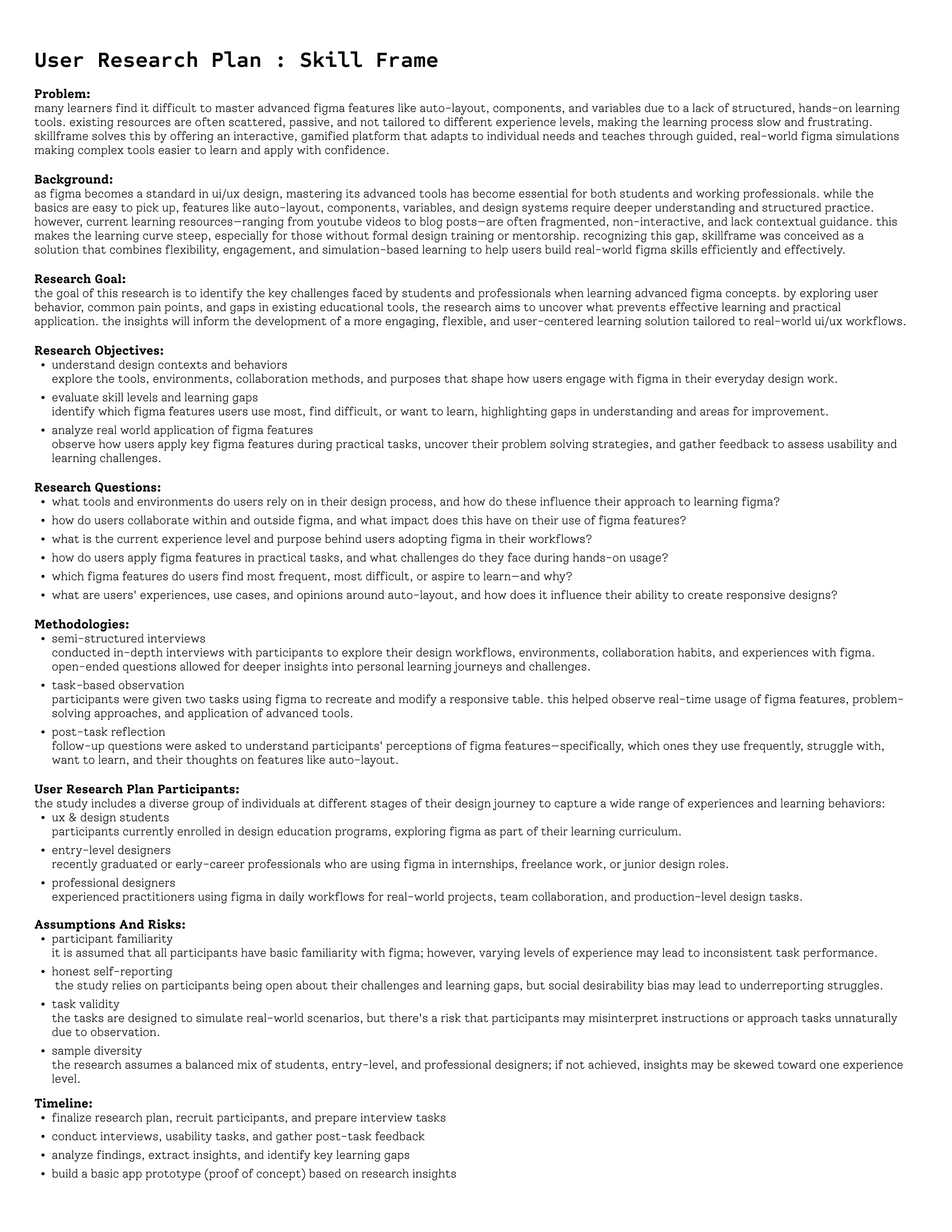
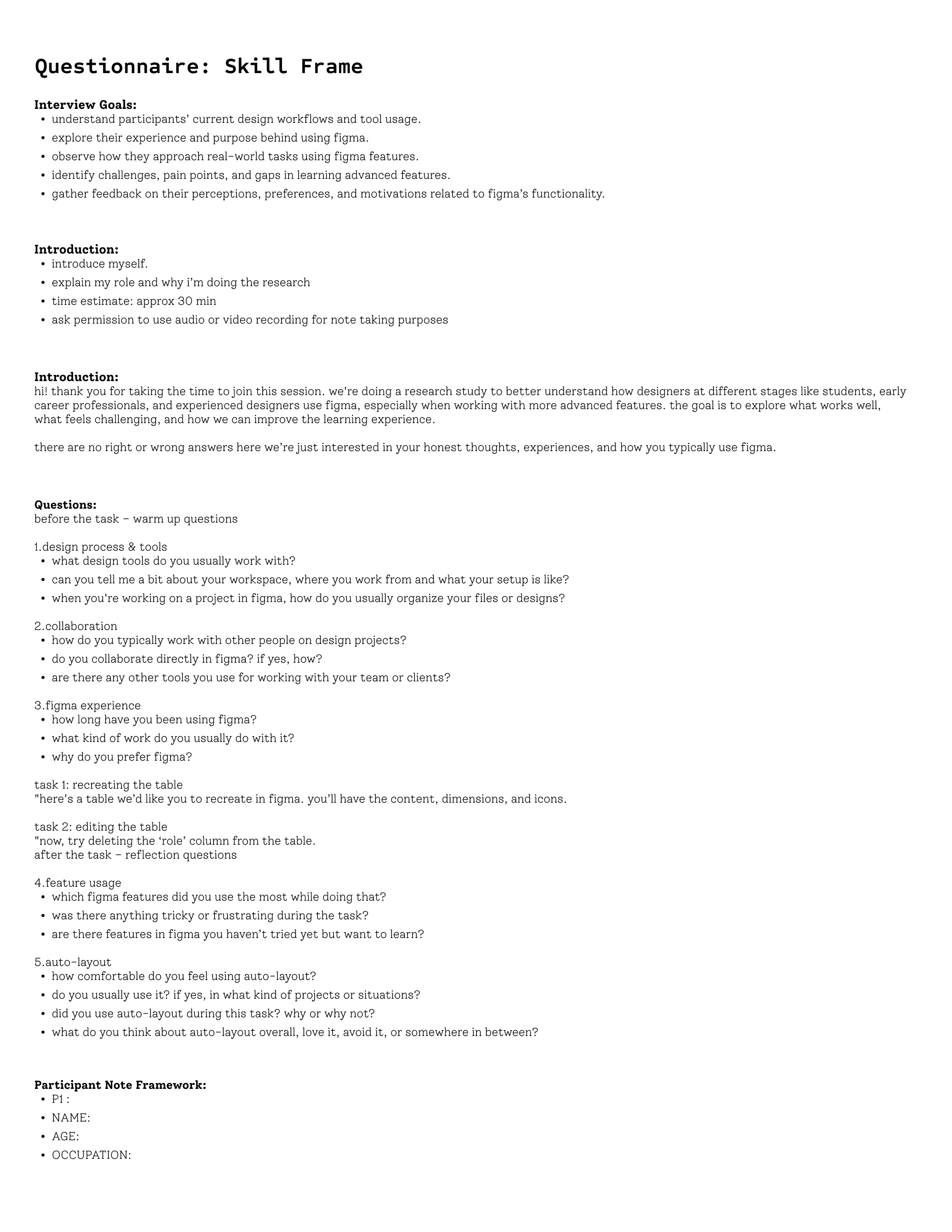
The interview process starts with creating a research plan. This outlines 7 key components:
-
Project background/problem
-
Research goals
-
Research Objectives
-
Research Questions
-
Methodologies
-
Hypothesis
-
Timeline
Research Objectives
Understand Design Contexts and Behaviors
Explore the tools, environments, collaboration methods, and purposes that shape how users engage with Figma in their everyday design work.
Evaluate Skill Levels and Learning Gaps
Identify which Figma features users use most, find difficult, or want to learn, highlighting gaps in understanding and areas for improvement.
Analyze Real World Application of Figma Features
Observe how users apply key Figma features during practical tasks, uncover their problem solving strategies, and gather feedback to assess usability and learning challenges.
Participants & Recruitment
All interviews took place via Zoom or in person. This process took 3 weeks to solicit the right participants, schedule interviews, conduct interviews, and synthesize all the information for research findings documentation.
Stake holders

Design Student

Entry level designers

Professional Designers
Our participants were recruited via various social media platforms, including LinkedIn, Instagram, and design community forums.
Selected Participants

MS-HCI student: 2 years
UX Design Intern: 3 years

MS-HCI student: 3 years

UX Designer: 4 years

Flow model

Artificat model

Affinity diagram

Physical model

Consolidated sequence model

Cultural model
Research Analysis
We began with individual field studies to observe how users interact with Figma in their own environments. We documented insights based on interviews, tasks, and user behavior, then came together to compare findings, identify common patterns, and align key takeaways.
Using this shared understanding, we built models to interpret and visualize our data.
Consolidated sequence model
Individual sequence diagrams were created to map each participant’s steps while using Auto-layout.
We then collaborated to consolidate these sequences into a single, unified flow.
This process helped us spot common breakdowns and moments of confusion.
It revealed the key friction points designers face when trying to use the tool efficiently.
.png)
Flow model
The flow model shows how participants use Figma and the steps they take when they get stuck or want to learn something new.
It became clear that they often rely on online resources like tutorials and videos, or ask quick questions to peers and colleagues to figure things out. All four participants followed a similar pattern: they started working on the task in Figma, reached out for help when needed, and used online content to learn tools from scratch. This flow helped them use Figma more efficiently.
-
The participants usually started with a clear goal, like finishing a school project or working on their portfolio.
-
Whenever they got stuck, they’d ask a friend or classmate for quick help to clear up their doubts and keep going.
-
To understand things better, they turned to online resources like:
-
YouTube tutorials (especially Figma’s official channel)
-
Blog posts and design forums
-
-
Their learning followed a loop: They’d find something they needed → look it up online → try it in Figma → get stuck → and repeat.
-
Most of the time, they used Figma’s basic tools like the pen, shapes, frames, alignment tools, and simple animations.
-
Instead of formal lessons, they learned by doing. Their approach was a mix of figuring things out on their own, getting help from others, and learning through practice i.e. almost never grasping the complete concept and its possibilities.
.png)

Table 1

Table 2
Table 1 is the expected output based on task and Table 2 is the final output of participant 04. This was created without using auto-layout, however it took them ~5 mins longer than the rest of the participants.
Artifact model
The artifact model captures how each participant built and interacted with the table in Figma, focusing on how they used (or struggled to use) Auto-layout.
-
P1 (Intern):
Applied Auto-layout only to the table header. Got confused when trying to apply it to the rest of the table and gave up. Instead, grouped the remaining rows manually.
-
P2 (Grad Student):
Recreated the table but ignored spacing and sizing details. Used Auto-layout on each row individually. When asked to delete a column, the layout broke, so they removed Auto-layout and grouped icons instead.
-
P3 (Professional UX Designer):
Successfully used Auto-layout on the rows and was able to edit the table. However, the columns were centered instead of left-aligned, which showed a minor misuse of alignment settings.
-
P4 (HCI Grad Student):
Recreated the table using manual steps. Tried to use Auto-layout by clicking the button but didn’t fully understand what it did. The columns were made individually without understanding the functions in the right-side pane.
Even though most participants knew about Auto-layout, they either misused it, didn’t apply it fully, or gave up when it broke. It shows a clear gap in understanding how Auto-layout works across rows and columns and a need for clearer, hands-on guidance within Figma.
Physical model

Fig: Participants working on a personal project in a lab

Fig: Participants working on an academic project in.a classroom
The physical model focuses on the setup and environment in which participants used Figma during the study. Most worked from personal laptops, often in quiet indoor spaces like study corners, or shared workspaces. Some worked directly on their laptop trackpad. Notebooks, phones, and even sticky notes were commonly kept nearby for jotting down ideas or referencing resources.
Cultural model
This model was built using insights from post-task interviews, focusing on how participants’ cultural and learning environments influenced the way they use and learn Figma. While all participants depended heavily on online resources like YouTube and blogs, their learning was shaped by personal and social constraints.
The most common challenges were:
-
Feeling hesitant or shy to ask seniors or peers for help
-
Not having enough time to sit through long or multi-part courses
-
Struggling to find clear, beginner-friendly tutorials on YouTube
-
Forgetting the steps after watching digital tutorials
These patterns show that while self-learning is common, it’s not always effective without the right support system. The cultural model highlights the need for learning tools that are not just accessible, but also quick, simple, and easy to revisit.

Affinity Diagram
Based on observations from the tasks and insights gathered during post-task interviews, we created an affinity diagram to group recurring behaviors and patterns. Three key themes emerged across participants:
-
How designers work with design tools – their general approach, habits, and problem-solving methods while designing.
-
How designers use Figma specifically – what features they use, how they organize their work, and their comfort level with the interface.
-
How designers use Auto-layout in Figma – the level of understanding, common mistakes, and how confidently (or hesitantly) they apply this feature.
These themes helped us make sense of user behaviors and identify where support or better learning tools are needed.


Research Key Findings
What the designers had to say?
Key Insights
-
"I tried to use Auto-layout but I don't know what to do with it."
— A participant expressing confusion when first using the tool. -
"I think figuring out how to do it a better way takes time."
— Highlighting that learning more efficient methods isn't instant—it needs practice. -
"This is a big issue, different people setting different properties."
— Referring to challenges when collaborating in shared Figma files. -
"I know how to use it, but I don't have much practice in using it."
— Acknowledging a gap between understanding and actual hands-on experience. -
"When I click on Auto-layout, it aligns everything...sometimes it works out."
— Describing a trial-and-error approach to using the feature. -
"Some (tutorial) videos have a lot of features which I don't care about."
— Frustration with overwhelming or unfocused online learning content.
-
When stuck, participants often turned to peers for quick help or guidance.
-
All participants agreed that more hands-on practice would help them get better at using Figma.
-
Most believed that Auto-layout could make their workflow easier, but didn’t always know how to use it effectively.
-
Trial and error was a common strategy, they kept tweaking settings until something worked.
-
Many were uncertain about what Auto-layout actually does or how its features behave.
-
One participant admitted they didn’t know how to use Auto-layout at all, and planned to learn it later.
-
While 3 out of 4 participants had some experience with Auto-layout, they still relied on online resources when confused.
Research Summary:
Design details:
Solution check:
-
Learning is self-driven but fragmented
Participants mainly relied on online resources and peers to learn Figma, but often struggled to find clear, focused tutorials. -
Auto-layout is seen as useful, but poorly understood
Most participants believed Auto-layout could improve their workflow, but lacked confidence in using it effectively. -
Practice matters more than theory
Everyone felt they needed more hands-on experience to truly understand Figma’s advanced tools, especially Auto-layout. -
Collaboration in shared files can create confusion
When working with others, inconsistent use of Figma properties led to frustration and messy files.
-
Clear, focused guidance on specific features
Users want short, to-the-point tutorials or tooltips that explain exactly what each feature, like Auto-layout does, without extra fluff. -
Hands-on, practice-based learning
They prefer learning by doing, so interactive exercises or guided simulations inside a Figma-like environment would be more effective than just watching videos. -
Quick, in-context help when stuck
Users expect real-time support whether it’s smart suggestions, mini walkthroughs, or an easy way to get answers without leaving the design space.
To make sure I’m heading in the right direction with this project, I revisited my research findings and user insights. Here’s what I now know:
-
There’s a clear gap in how advanced Figma features are taught. Most resources are either too generic, too long, or not hands-on enough, leaving learners confused and unsure.
-
Users consistently expressed that a solution offering interactive, focused, and in-context learning would help them feel more confident using tools like Auto-layout and improve their overall design workflow.
These insights confirm that there’s space to build a learning tool that’s more practical, direct, and aligned with how designers actually learn: through doing, not just watching.
IDEATE
Focus on challenges
Learning Accessiblity & Resources
Usability & Learning Experience
User Engagement & Retention
Users feel they do not have enough or the right resoures to practice.
Inadequate interactive onboarding within Figma
Lack of context on when and how to use Auto Layout effeciently.
Hassles in switching between tabs or windows while learning
Difficulty in recollecting tools and steps after learning
Videos are too long, affecting user engagement.

Brainstorming + Visioning
Students take control of their learning
The learning pathway depends on the learners' existing knowledge and skills and their choice to either start from the basics or practice the Figma tools they know.
Gamification approach
An interactive and engaging website where learners have a progress indicator and receive points and awards that keep them motivated and inspired.
Guided learning of Figma concepts
A website that provides a simulation of the Figma workspace where designers are guided through advanced concepts like auto layout, components, and variables.
AI chatbot in Figma
.jpg)
User Problem Scenario
The user is working on a Figma design file and often gets stuck while trying to use Auto-layout. They either don’t understand how it works or are unsure which settings to apply, which slows down their workflow and causes frustration.
Proposed Solution
‘Fig AI’ – an AI-powered chatbot built into Figma that offers step-by-step guidance when users are stuck using a tool. It responds to natural language questions and gives tailored solutions in real-time.
Foreseeable Benefits
-
Quick, in-context support available right inside the design environment
-
Solves specific problems without needing to search through long tutorials
-
Saves time by reducing the need to switch between tabs, read, or watch videos.
Potential Cons
-
Users may not know how to phrase effective prompts
-
May not help users understand the why behind a concept just the how
-
Doesn’t provide hands-on practice or long-term learning
.jpg)
Video Resource Plugin for quick access to tutorials
User Problem Scenario
A user is watching a tutorial video on components while working on a Figma project. They follow each step but struggle to switch between the video window and the Figma file especially on a single screen setup making the learning process frustrating and slow.
Proposed solution
A Figma plugin that allows users to watch tutorial videos directly inside the Figma workspace. The plugin would feature a searchable tab or floating window where users can browse short or in-depth videos from a curated database without leaving the design file.
Foreseeable benefits:
-
Easier for designers to follow through tutorials that are on the same computer screen while working on a single screen.
-
Avoid getting overwhelmed by the plethora of options.
-
Quicker to find solutions when looking for a fixer upper.
Potential Cons:
-
Beginners won’t know what to search about the tool.
-
Not effective for fundamental learning.
-
Not effective for practice.
Learn features through games
.jpg)
User Problem Scenario
The designer wants to learn Auto-layout but quickly loses motivation. They get confused while trying to apply it during real projects and struggle to connect what they’ve seen in tutorials to actual design tasks.
Proposed solution
An interactive learning website designed specifically to teach Figma tools in a hands-on, structured way. Learners follow a guided course pathway, receive instant feedback, and get plenty of space to practice, making learning feel natural and rewarding.
Foreseeable benefits
-
Makes learning engaging, visual, and practical not just passive watching
-
Offers step-by-step guidance with opportunities to practice and reinforce concepts
-
Helps designers build real confidence, not just watch and forget
Potential Cons
-
May require users to leave the Figma app
-
Time investment is needed for full learning
-
Not ideal for instant answers,
Final Direction: Gamified Learning
After hours of visioning and a focused discussion, we concluded that the gamification approach aligns best with the core challenges our users face.
This direction offers:
-
An effective and engaging learning platform
-
A quick-reference tool users can rely on when they’re stuck
-
A space to practice in real-time, not just passively consume content
-
A way to refine specific skills and better understand advanced tools like Auto-layout in Figma
By combining learning with motivation, gamification helps users stay on track, build confidence, and actually enjoy the process.
Prototype

Low fidelity prototype

What we might have missed?
-
Giving participants a more open-ended task could’ve uncovered deeper insights about their struggles with Figma and how they use learning resources.
-
A larger participant group (8 or more) would’ve helped gather broader patterns and edge cases.
-
Including designers with different experience levels and work setups could’ve shown more varied ways of using Figma and its tools.